How to Make a Square Profile Picture (And Why Most People Are Doing It Wrong)
Most people search for “how to make a square profile picture” and land on a cropping tool. They upload a photo, drag a box around their face, and download a slightly worse version of something they already had.
That gets the job done. But it’s not the only way — and for a lot of people, it’s not even the right one.
This guide covers both paths: the standard crop-and-convert method for people working from real photos, and a completely different approach where you build the whole thing from scratch — no photo needed, no upload required.
Why Your Profile Picture Should Be Square
Every major platform — Discord, Twitter/X, YouTube, TikTok, Instagram, Steam — displays profile pictures inside a square or circle frame. When you upload a rectangular photo, the platform decides what gets cut. Sometimes it crops fine. Most of the time it doesn’t.
Uploading a square image (1:1 ratio) puts you in control. You decide what’s centered, what’s visible, and what the final result looks like before it goes anywhere.
One more practical thing: a single well-made square file works everywhere. Make it once at a good size — 512×512 handles most platforms well — and reuse it across accounts without re-editing anything.
Square Profile Picture Sizes by Platform (2026)
Platform display sizes vary, but they all start from the same thing: a square source file. Here’s what to know:
Discord — 512×512 is the recommended size. The avatar shows much smaller inside servers, but uploading at 512 keeps it sharp when it counts.
Twitter / X — 400×400 minimum. The platform compresses aggressively, so give it more to work with than it actually needs.
YouTube — 800×800. Your channel icon appears across multiple surfaces at different sizes, so start with something bigger.
TikTok — 200×200 minimum, but upload at 512×512 or larger to avoid blur on modern displays.
Instagram — 320×320 minimum upload. The displayed version is small, but the source needs to be clean.
Steam / Gaming Platforms — 184×184 display size. A 512×512 source stays crisp on higher-resolution screens.
General rule: Upload bigger than the platform needs. Let it scale down. Never upload small and expect it to scale up cleanly — it won’t.
Method 1: Crop an Existing Photo
This is what most people do. You have a photo, you want it square, you crop it.
How to do it:
- Open your photo in any image editor — the one built into your phone works fine.
- Set the crop ratio to 1:1 (square).
- Center your face or the main subject within the frame.
- Crop and export — PNG for clean edges, JPG if file size matters.
The problem: You’re limited to what you already have. Bad background, awkward lighting, wrong angle — cropping doesn’t fix any of that. You’re just picking the least-bad section of a photo you never quite liked.
And honestly, a cropped photo looks like every other cropped photo. If that’s fine for your purpose, great. But it’s not the only option.
Method 2: Upload and Add a Fill Background
Some tools let you convert a non-square photo by adding a blurred or solid-color border around the edges, rather than cutting anything out. Your full image stays visible; the tool just fills the space to make it square.
When this makes sense: You have a tall or wide photo where the edges matter — a full-body shot, a group photo, a product image. Cropping loses important parts. The blur fill keeps everything in frame.
The limitation: You’re still starting from a photo that already exists, with all the same constraints.
Method 3: Build a Square Profile Picture From Scratch
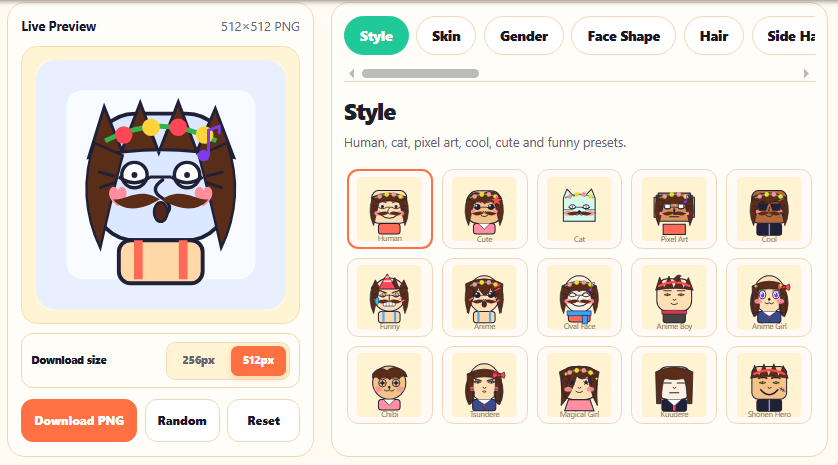
Here’s the option most people skip — and it’s the one worth knowing about.
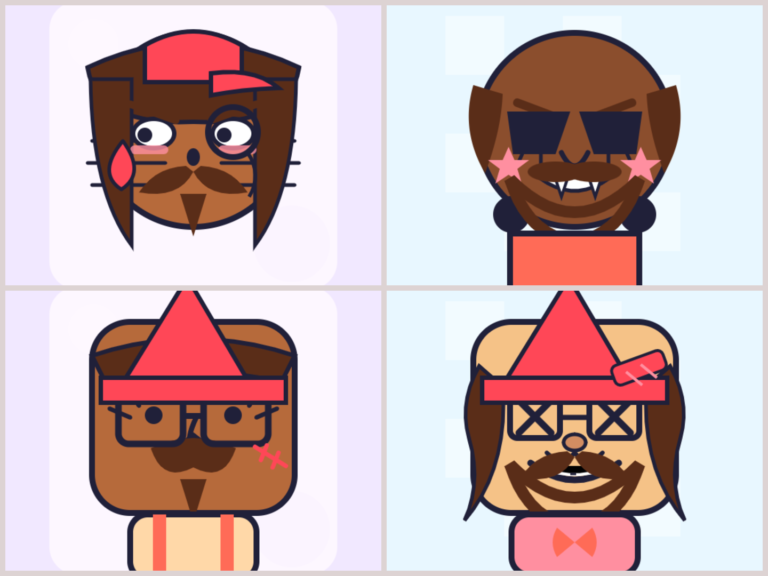
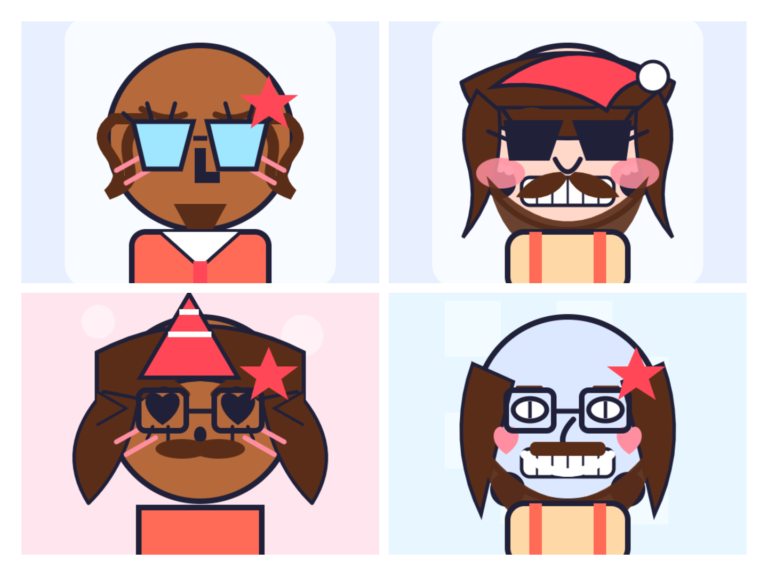
Instead of cropping or converting a real photo, you build an original avatar from parts. You pick the face shape, skin tone, hair style, eyes, expressions, accessories, background. The result is a clean square image that looks like nothing else because it isn’t based on anything else.
Why this exists:
A lot of people — especially in gaming communities, Discord servers, and online forums — use illustrated or pixel-style avatars instead of real photos. It’s a deliberate style choice. Others want something that’s genuinely theirs: not a stock photo, not a generic AI output, but something they actually built piece by piece.
Square Face Generator is built specifically for this. It runs entirely in your browser with no account, no install, and no photo upload required. You build from a blank face and make every choice yourself.
Here’s what’s inside the tool:
- 40 hair styles — classic fringes, bob cuts, spiky hair, anime ponytails, wolf cuts, braided crowns, long twin tails, and more
- 11 side hair options — long sides, wavy sides, drill curls, ribbon tails, hime sidelocks
- 30 eye styles — dot, round, star, cat, spiral, heart, sleepy, angry, wink, glossy anime, big sparkle, tsundere, UwU closed, villain slit, teary, and others
- 19 nose options — from tiny dot and curve to cat nose, pig nose, hook, and bridge
- 24 mouth styles — smile, grin, fangs, teeth, cat mouth, kiss, tongue, uwu, pout, vampire, braces, and more
- 16 eyebrow shapes — soft, thick, angry, sad, thin, straight, high arch, anime fine, worried
- 6 eyelash styles — cute, long, bottom, doll, top fan, side
- 11 blush types — round, lines, hearts, pixel, star, under-eye, spiral, dots, stripes
- 9 moustache styles
- 9 beard styles
- 14 glasses types — round, square, sunglasses, goggles, monocle, cat glasses, aviator, heart, nerd, blindfold, visor, and more
- 17 hats — cap, bow, crown, party hat, beanie, santa, witch, beret, top hat, flower crown, bunny ears, headphones, cat-ear band, halo, devil horns, and more
- 16 clothing options — t-shirt, hoodie, jacket, collar, scarf, sailor, suit, dress, kimono, ninja scarf, school uniform, striped shirt, cape
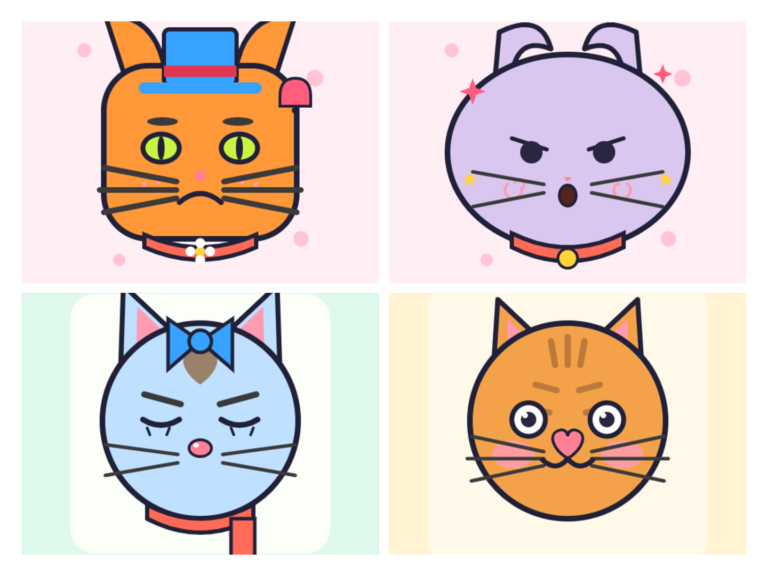
- 9 cat parts — whiskers, cat ears, paws, tail, fluffy ears, long whiskers, paw cheeks, bell
- 18 extras — star clip, hair clips, tear, bandage, scar, flower, lightning, moon, heart cheek, sweat drop, sparkles, music note, ahoge strand, anger vein
- 12 backgrounds — cream, soft blue, pink, mint, purple glow, yellow stars, checker, warm gradient, anime sunset, focus rays, sakura, night sky
- 14 skin colors — including warm tones, deep tones, and cat/fantasy colors
- 8 face shapes — square, soft square, round, oval, wide, tall, pixel, cat
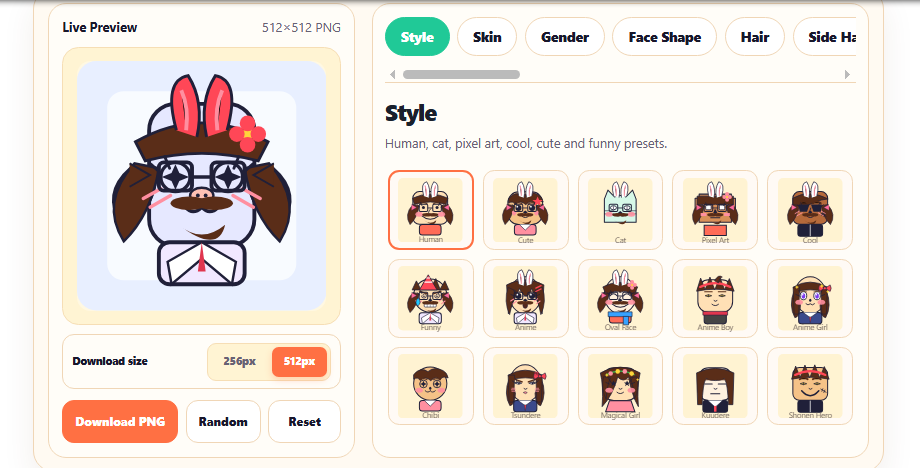
- 15 quick-start style presets — Human, Cute, Anime, Pixel Art, Cool, Funny, Cat Face, Oval Face, Anime Boy, Anime Girl, Chibi, Tsundere, Magical Girl, Kuudere, Shonen Hero
That’s 306 individual parts across 20 categories. Each element is also adjustable — you can shift position on X and Y axes, resize it, and change its color with a color picker.
Download options are 256×256 or 512×512 PNG, no watermark, no login.
Looking for more options? See our full guide to Picrew alternatives.
How to Make a Square Profile Picture With Square Face Generator
The process is straightforward. Here’s how it works step by step:
Step 1 — Open the tool Go to square-face-generators.tools. No signup, no download. Loads directly in your browser on any device.
Step 2 — Pick a starting style The Style tab has 15 quick presets — Human, Cute, Anime Girl, Anime Boy, Pixel Art, Cat, Chibi, Tsundere, and others. These load a full starting look you can then modify. Or skip the presets and build from blank.
Step 3 — Choose your face shape Eight options: square, soft square, round, oval, wide, tall, pixel, and cat. This is your foundation — everything else layers on top of it.
Step 4 — Work through the categories Tabs across the top let you switch between categories: Skin, Hair, Side Hair, Eyes, Nose, Mouth, Eyebrows, Eyelashes, Blush, Moustache, Beard, Glasses, Hats, Clothes, Cat Parts, Extras, Background. Pick what you want, set others to None. The live preview updates with every change.
Step 5 — Adjust and color For any selected part, you can drag sliders to move it left/right, up/down, or resize it. The color picker changes that part’s color independently — hair color, eye color, accessory color, all separate.
Step 6 — Use Random if you’re stuck One click on the Random button generates a full combination. Most of the time you’ll tweak it from there, but the random output is often a good starting point that shortcuts the early decisions.
Step 7 — Download Choose 256px or 512px, click Download PNG. The file comes out clean with no watermark and drops straight to your device. Done.
The whole process takes a few minutes. If you already know what you want going in, less.
Which Method Is Right for You?
Try our Oval Face Generator for softer oval-shaped avatars.
Use the crop method if: You have a photo you already like and just need it in square format. Quick and simple.
Use the blur/fill method if: You have a photo where cropping would lose important parts of the image.
Use Square Face Generator if: You want an original avatar rather than a cropped photo. Especially useful for gaming, Discord, forums, streaming, and anywhere an illustrated style fits better than a real photo. Also the right choice if you want something that’s genuinely yours — built by hand, not generated from a template.
Tips for a Square Profile Picture That Actually Works
Regardless of which method you use, these habits consistently produce better results:
Keep the main subject centered. Platforms crop from the center on different surfaces. If your face or character’s face sits near an edge, something will get cut at some point. Center it and the risk disappears.
Keep backgrounds simple. A busy background competes with the main subject at small avatar sizes. Solid colors or minimal backgrounds read more clearly when the image is displayed at 40×40 pixels in a server list or comment thread.
Choose 512px when quality matters. For Discord, Twitter, YouTube, and most gaming platforms, the 512×512 download gives you the best result after platform compression. The 256×256 option works fine for smaller uses like forum icons or situations where display size is already very small.
Test it at small size before committing. Preview the image at roughly 40×40 pixels before uploading it anywhere. That’s about what it looks like in most feeds and server member lists. If it reads clearly at that size, it works everywhere.
PNG for illustrated avatars, JPG for photos. If your profile picture has solid colors, clean shapes, or is created in a tool like Square Face Generator, PNG preserves the edges without compression artifacts. JPG is fine for real photos where file size matters more.
Are you cat lover? Our Cat Icon Maker lets you build pixel cat avatars the same way.
Frequently Asked Questions
What’s the best size for a square profile picture?
512×512 covers most platforms well. It’s sharp enough for Discord, Twitter, YouTube, and gaming profiles after platform compression. If your use case is something smaller — a forum icon, a small in-game avatar — 256×256 is sufficient.
Can I use the same square profile picture across all platforms?
Yes. A single 512×512 file works everywhere. Each platform scales it down to fit. Keep the main subject centered and nothing important will get cropped automatically.
Do I need to upload a photo to make a square profile picture?
No. Tools like Square Face Generator let you build an original avatar without uploading anything. Every part is chosen and assembled in your browser — nothing comes from a photo.
What format should I save my square profile picture in?
PNG for illustrated or cartoon-style avatars — cleaner edges, no compression artifacts on flat colors. JPG for real photos where file size matters. Most platforms accept both.
Is a square profile picture better than a circle one?
Most platforms that use circular avatars crop from the center of a square file automatically. Uploading square and keeping your subject centered handles both cases. You don’t need to pre-crop to a circle.
Can I make an animated square profile picture?
Some platforms support animated avatars (Discord Nitro, for example). Square Face Generator exports static PNG. For animated avatars you’d need a separate GIF or APNG tool.
How many options does Square Face Generator have?
306 parts across 20 categories, including 40 hair styles, 30 eye types, 24 mouth options, 19 nose shapes, 17 hats, 16 clothing options, 14 glasses, and 15 full style presets. Each part also has independent position, size, and color controls.
The Bottom Line
Making a square profile picture doesn’t have to mean cropping the same photo you’ve had for three years. If you want something more original — built for gaming, community profiles, or anywhere a hand-made illustrated look fits better than a real photo — building one from scratch is a real option and faster than most people expect.
No account. No photo upload. 306 parts to work with. Just open it and build.